Folder Edit
Once you've selected EDIT from the Chip Folder screen,
you'll be able to edit the chosen folder.
Two Screens
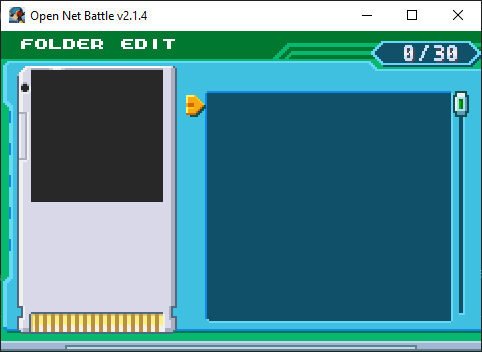
Folder edit is split between two different screens. The first is the folder itself, which is empty right now.
The second is the Pack, which shows all of your installed card mods. You can get here by clicking the UI Right button (right arrow key by default).
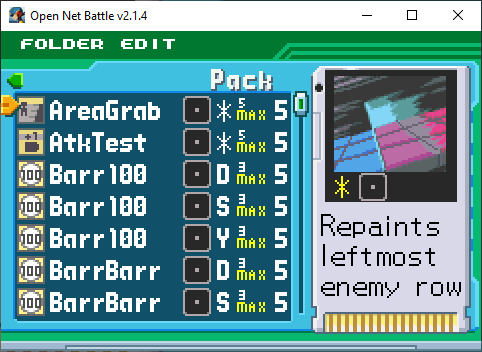
Most of your editing time will be spent here.
Scrolling
You can scroll through your chips using UI Up/Down (hold to go faster), and the shoulder buttons. The shoulder buttons jump multiple chips at once, so if you have a long list, you'll want to use them.
Adding Chips
You can add chips from the Pack in a couple ways. If you press the Confirm button, you'll have selected the chip at the cursor.
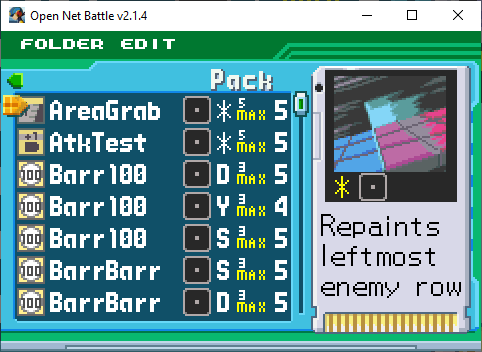
You can see the cursor hanging around this chip. If you press Confirm again...
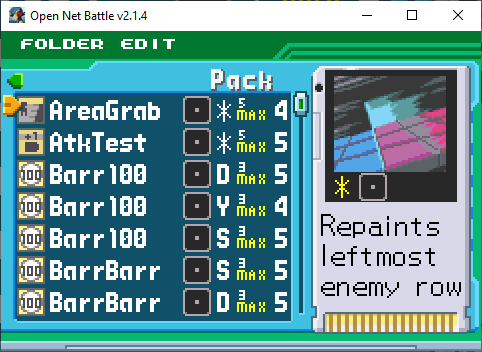
The chip gets added to your folder. See how its 5 went to 4. If you move
back to your folder with UI Left, you'll see that it was added to the first
empty slot.
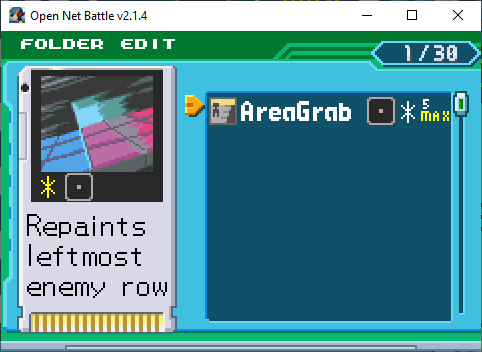
You can also add a chip by swapping it with a chip slot, even an empty one, in your folder.
Swapping Chips
If you press Confirm on a chip, you can then scroll to another chip and press Confirm to swap their position.
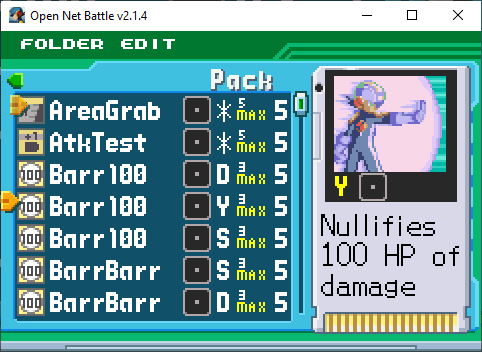
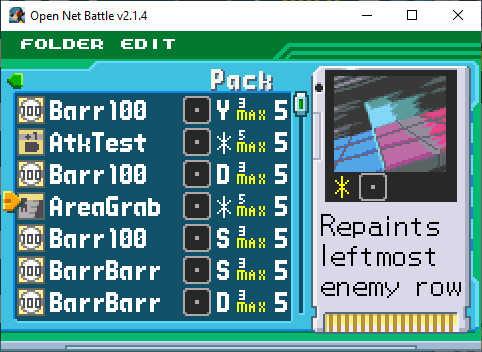
This doesn't do much in your Pack, but you can also swap a Pack chip with a folder chip like this, or swap your folder chips with each other to reorganize.
Removing Chips
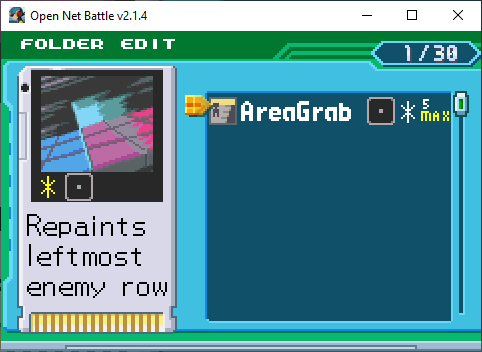
You can remove chips from your folder in the same way you can add them from the Pack. Press the Confirm button to select the chip, then press the Confirm button again on the same chip.
Sorting Chips
In both your folder and the Pack, you can press the Pause button (Enter by default) to bring up the chip sort options.
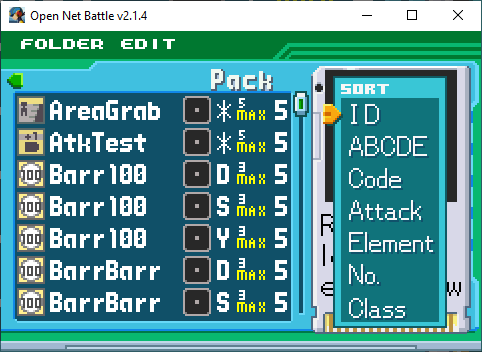
You can sort by:
- ID - Alphabetically based on package ID. The default, but not that useful because package IDs can be anything. Usually acts similar to sorting by author.
- ABCDE - Alphabetically based on chip name.
- Code - Alphabetically based on chip code.
- Attack - Sorts low to high printed damage.
- Element - Sorts Elements together based on an internal order. Fire first, Null (None) last.
- No. - Sorts lowest to highest remaining count. A bit useless, since everything has 5 copies in v2.1.
- Class - Sorts Card Class together. Standard first, Dark last.
If you click the same sort that is already active, it will reverse the order.
For example, if you click ABCDE twice, you will sort in reverse alphabetical
order.
Copy/Paste
You can copy and paste folders to share with friends, or to act as templates for yourself.
Copying
If you're viewing your folder, press the copy shortcut (Ctrl + C). You'll hear a sound, confirming that your folder has been copied.
Take this folder, with 3 chips.
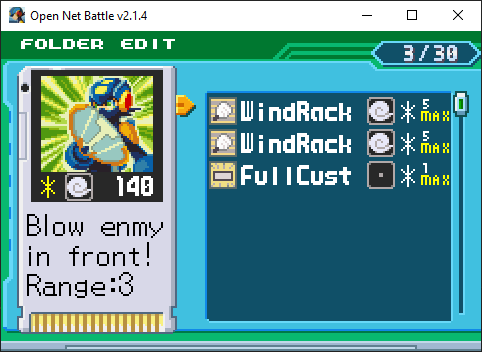
Here's what was copied to my clipboard:
```
# Folder by Alrysc
com.alrysc.card.WindRack,1bca70da091a7fc8048454eb58f4bec0,*
com.alrysc.card.WindRack,1bca70da091a7fc8048454eb58f4bec0,*
com.OFC.card.EXE6-176-FullCustom,e256e03545a5008cffebd6479769069f,*
```
The first line includes the name you set in the Config screen.
Each line after that shows a chip's package ID, MD5 hash (essentially, their version), and their chip Code.
Pasting
You can paste these copied chips into an empty folder. If you're not in an empty folder, it doesn't work.
With a proper folder copied, press the keyboard paste shortcut (Ctrl + V) to paste the chips in. You should hear one of two sounds:
- The boost consumption sound, good: Everything pasted perfectly.
- An error sound, bad: Something went wrong.
If you hear the error sound, check the console window (the black window that opened with the game) to see what went wrong. Sometimes, it's nothing to worry about. Here are the list of possible error causes:
- At least one of the chips you tried to paste isn't installed
- At least one of the chips you tried to paste is installed, but the paste wanted a different version than you had
- At least one of the chips you tried to paste doesn't come with the Code the paste had
- At least one of the chips you tried to paste couldn't be added for another reason, like if it exceeded the copy limit
Some errors will still let the chip be added, but others won't.
Folder Limits
A folder can only have up to 30 chips. These can be nearly any combination of chips. Some of the limitations are more lax than BN. For example, you are allowed to use folders with less than 30 chips, too.
Once v2.5 releases, servers will have the power to modify many of these limits, and may choose to be more faithful to the games.
Class Limits
In v2.1, folders lack some of the limits you expect of BN. For example, you can add as many Mega, Giga, and Dark class chips as you want. If playing PvP, you and your opponent might agree to follow these rules regardless.
Copy Limits
The limit on the number of copies of a unique chip your folder can have has
changed across the BN series. In BN6, this is based on a chip's MB (Megabyte)
value. In v2.5, ONB also will use MB, but for now, we have specified copy
limits generally ranging from 1-5.
You can have as many copies of a chip in your folder as the chip mod indicates. In the folde rand pack, you'll see this as text on the right, next to the chip Code.
Some chips don't specify a max, so it says No Max. You'll still be limited
to 5 copies per Code, but can add 5 more copies of another Code for chips like
this.
Cannot Select Folder
If you're on a server with a whitelist, and your folder contains any chips that are not allowed, your folder will be greyed and unselectable.
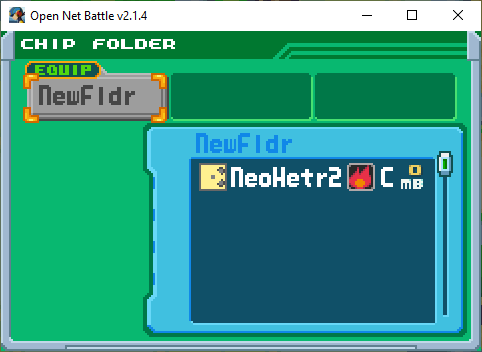
You can read more about this on the page about whitelists