Config Screen
Once you've gone through the Start menu to get to the Config screen, you'll see this:
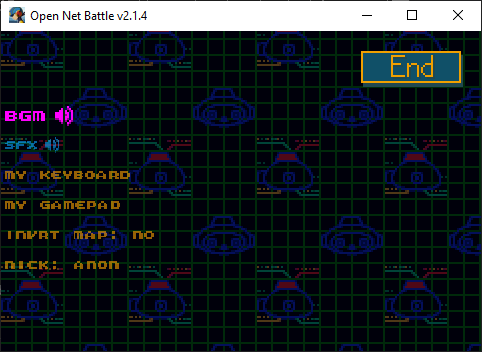
This page goes over each of these options.
Navigation
The UI Left, UI Right, UI Up, and UI Down keys change selections on this
screen. By default, these are you arrow keys on keyboard. Use either UI Right
or Confirm (Z by default) to toggle and prompt other input. The Cancel button
(X by default) will unselect something, or bring you to the End button you
see in the corner.
Volume
First you'll see the BGM and SFX options. Press UI Left or UI Right (arrow
keys by default) to raise or lower them. Confirm (Z key) also raises them.
You might have noticed that ONB is pretty loud, so this is how you'll quiet it a bit.
All Controls
The My Keyboard and My Controller options will let you edit your controls,
but first, you can read about what all of the controls are for. If you've
played any BN games on mGBA, these controls will be familiar.
Controls are split between overworld/battle and menus. The overworld/battle controls are:
- Move Up/Down/Left/Right - Moves you. Arrow keys by default.
- Shoot - Triggers your normal attack in battle.
Zby default. - Use - Uses a held chip in your hand during battle.
Xby default. - Special - Uses your special attack in battle (think of it like a
B+Back hotkey, if you remember abilities like Shield from the games).
Cby default. - Cust Menu - Opens the Custom Screen when the Custom Gauge is full.
Sby default. - Pause - Opens the menu, pauses battle, and sometimes gives other options.
Enterby default - UI Up/Down/Left/Right - Moves UI, like changing options in a menu. Recommended to be the same as Move Up/Down/Left/Right. Arrow keys by default.
- Confirm - Confirms, selects, etc.
Zby default. BN games would match this with theUsebutton. - Cancel - Cancels, unselects, etc.
Xby default. BN games would match this with theShootbutton. - Option - Misc usage. Think of it like the
Selectbutton on GBA.Cby default. Recommended to be rebound so it doesn't matchSpecialin battle, but it's not an issue. - Run - Hold to run on the overworld. BN games would match this with the
ShootandCancelbuttons. - Shoulder L - Usually for scrolling or rotating, but can be read in battle by
mods.
Aby default. - Shoulder R - Usually for scrolling or rotating, but can be read in battle by
mods.
Sby default. - Minimap - Opens the minimap on the overworld, if available. In battle (debug only),
flips perspective.
Mkey by default. - Advance Frame - If debug is enabled, activates framestep mode. Clicking again advances a single frame.
- Resume Frames - If debug is enabled, deactivates framestep mode.
- Record Frames - Currently disabled, but if it did do something, it would start/stop
"recording" frames by saving images of each frame in a new
recordingfolder.
There are a few things to notice here.
So Many Inputs
First, there are a lot of inputs that seem duplicated, like all those UI buttons
compared to Move buttons, and Shoot, Cancel, and Run all being separate buttons
when you expect them to be the same, like they would in BN. There's no problem if
you want to change then to all match.
One Cust Button?
Second, if you've played the games, you'll notice that Cust Menu is only one
button, when the games use either shoulder button to open the Custom Screen.
You'll get used to it.
Because the shoulder buttons are also separate inputs, you might consider binding
the Cust Menu to a different button entirely, to give you an advantage if you
use a Player mod that uses the shoulder buttons to do something, so you can avoid
accidentally opening Custom at the same time.
Special Button?
The Special button looks new. Like mentioned above, you can think of this as a hotkey for "B + Back", which activated abilities like Shield in the BN games. Player mods use this instead of trying to read any B + Back inputs.
When you use Specials, you might see enemy HP disappear, and you held chips spread out. This is actually a function of the Option button, not Special, which is why I recommend rebinding Option.
Debug?
Some of the inputs above only work in debug mode. You can activate this by
passing the -d flag when launching ONB. If you don't know what that means,
another section will cover it.
My Keyboard
If you click into the My Keyboard option (with Confirm or UI Right input),
you'll see a list of all the controls and their current key bindings.
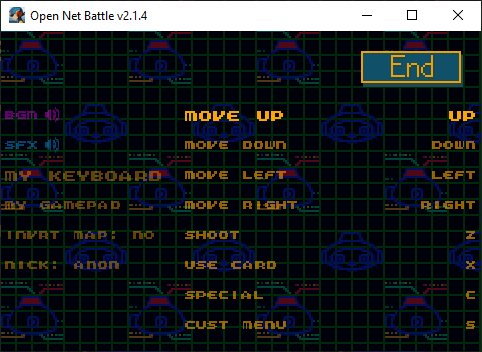
Click Confirm on these to edit them. Your next key press will become the
new input for this button.
Any changes made will not take effect until you click the End button and
save changes.
My Gamepad
If you click into the My Gamepad option (with Confirm or UI Right input),
you'll see a list of all the controls and their current key bindings. None
of these are assigned by default.
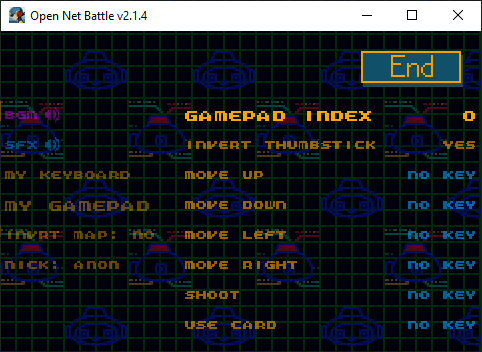
Click Confirm on these to edit them. Your next controller button press will
become the new input for this button. If your controller doesn't work, make
sure it's the gamepad in the slot selected (0 by default), or make sure ONB
was not opened before the gamepad was plugged in and turned on.
Some users have had trouble with wireless controllers, or wireless controllers with low battery, or controllers that were not in the first slot.
Any changes made will not take effect until you click the End button and
save changes.
Invert Map
You can click Confirm or UI Right to toggle this between ON and OFF. Changes
which direction to pan the minimap when using UI Up and UI Down.
Nickname
You have a nickname that will display to other players in online areas. Servers also use this sometimes to refer to you, like when you leave a post on a BBS board.
You can change that here by clicking the Nick option with Confirm or UI Right.
This prompts you to type in a new name.
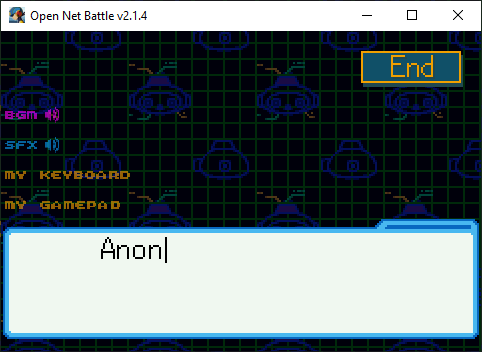
There's a 9 character limit. Use your keyboard as normal, and press Enter when you're done.
Save Changes (End)
Whenever you're done making changes, you can leave the menu and save by pressing
Cancel (or UI Up until you reach it) to get to the End button, then press
Confirm to select it. It'll ask if you want to save these changes.
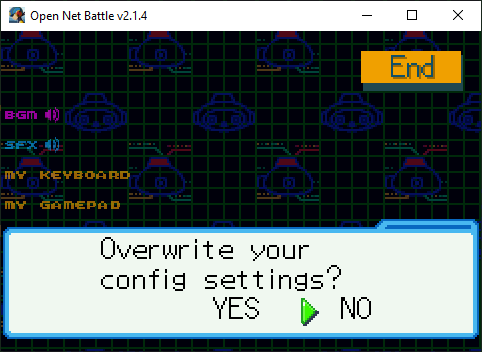
Use UI Left/Right and Confirm to select here. Hopefully you don't accidentally
click NO when you do want to save it. If you press Cancel again here, it won't
save.