Chip Folder
Once you've gone through the Start menu to get to the Chip Folder screen, you'll see this:
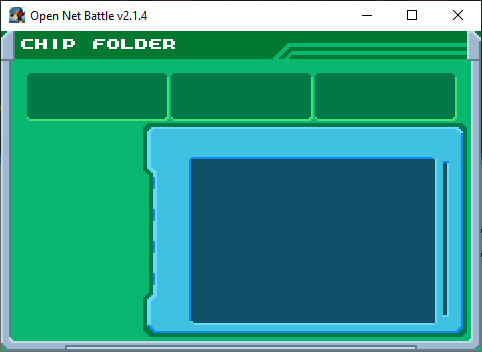
This page goes over what you can do here.
Create Folders
First, you need to make a new folder. Press the Confirm button
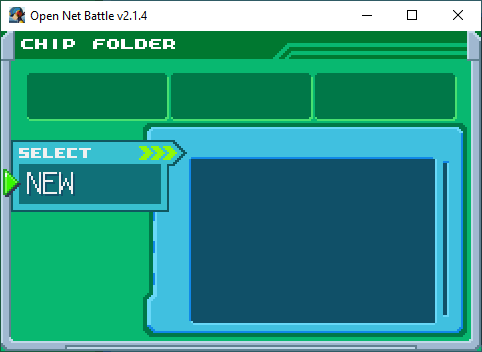
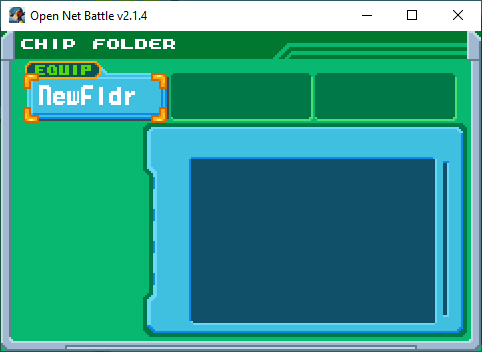
Folder Options
Now that you have a folder, you can click Confirm on it to get some new options.
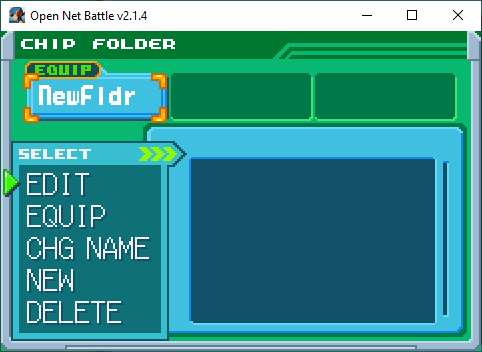
You can select these options using the UI Up/Down keys, and then Confirm.
Edit
Most importantly, you can click EDIT to reach the Folder Edit screen. This
has its own page, which you can read later.
Equip
If you click the Equip button, you'll equip this folder. It'll be what you
use in battle.
Equip Twice
If you equip the same folder twice, you might actually "undo" your equip. This is because, behind the scenes, the folders swap places, but they haven't visually swapped yet.
Change Name
If you click the CHG NAME button, you'll open a new screen, where you can
edit the folder name.
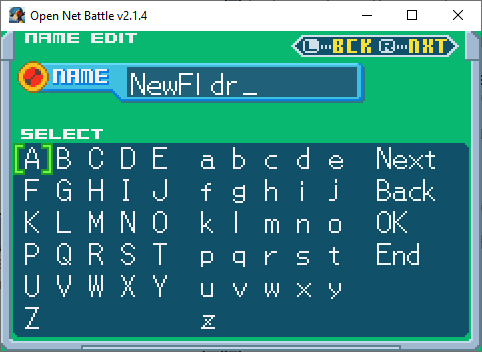
As an experience just like BN6, you'll be using inputs to select letters. The UI keys move your cursor here, and Confirm adds the letter. Cancel deletes a letter.
Press Confirm on the OK button to save changes. Press it on the END button to exit without saving.
You can use the left/right shoulder buttons to move the current letter selection
in the name. For example, at first, selecting a letter with Confirm will replace
the N in my folder's name, in the above image. If I press the Shoulder R
button, it'll replace the e instead.
New
You can create a new folder. Unlike BN games, you aren't limited to only three. You can keep creating and the screen will scroll to the right.
Delete
Deletes the folder.
Other Controls
You can use UI Left/Right to move between folders, so you can click on them and get the options popup.
You can also use UI Left/Right to scroll through the folder preview window, which shows the chips in the folder.
Saving Changes
No changes, including any name edits or even chip edits, are saved until you leave this menu. If you accidentally do something without meaning to, you could close ONB as a last resort to undo it. Otherwise, make sure to leave the menu to save first.